¶ iOS Offline Maps for Burning Man 2026
This guide sets up two complementary map features in the Meshtastic app for iPhone and iPad:
- an offline base map for the Black Rock City area; and
- the official 2026 Burning Man GeoJSON overlays, including city blocks, roads, plazas, toilets, and other event features.
Complete these steps while you still have a reliable internet connection. You do not need to connect a Meshtastic radio to prepare the maps.
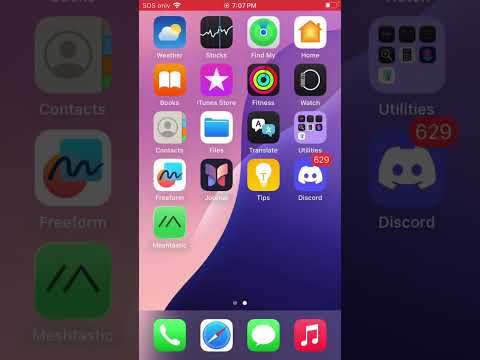
¶ Video tutorial
¶ Before you begin
You will need:
- an iPhone or iPad with the current Meshtastic app installed;
- Safari and the Files app;
- enough free storage for your chosen offline area; and
- an internet connection for both downloads.
Important: The offline base map and the Burning Man overlays are separate. Downloading only one will not provide the complete setup.
¶ 1. Download the 2026 Burning Man overlay files
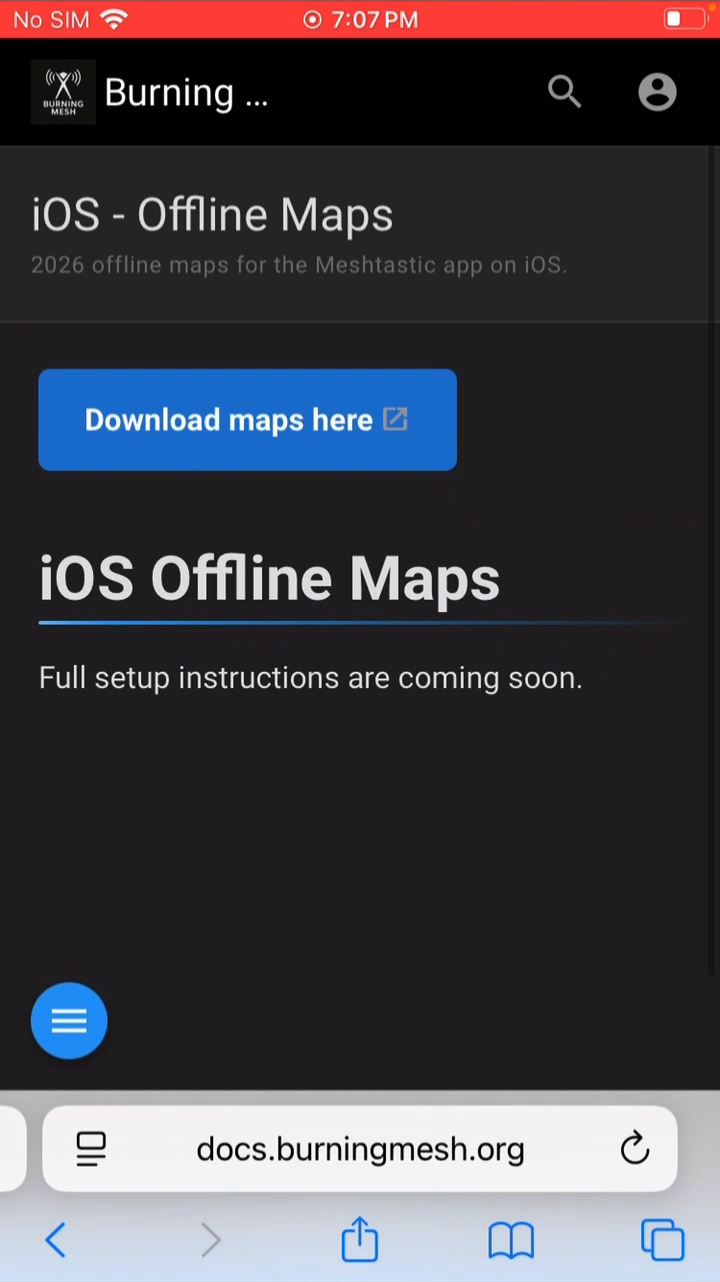
- Tap the button below to download the official 2026 Burning Man map files.
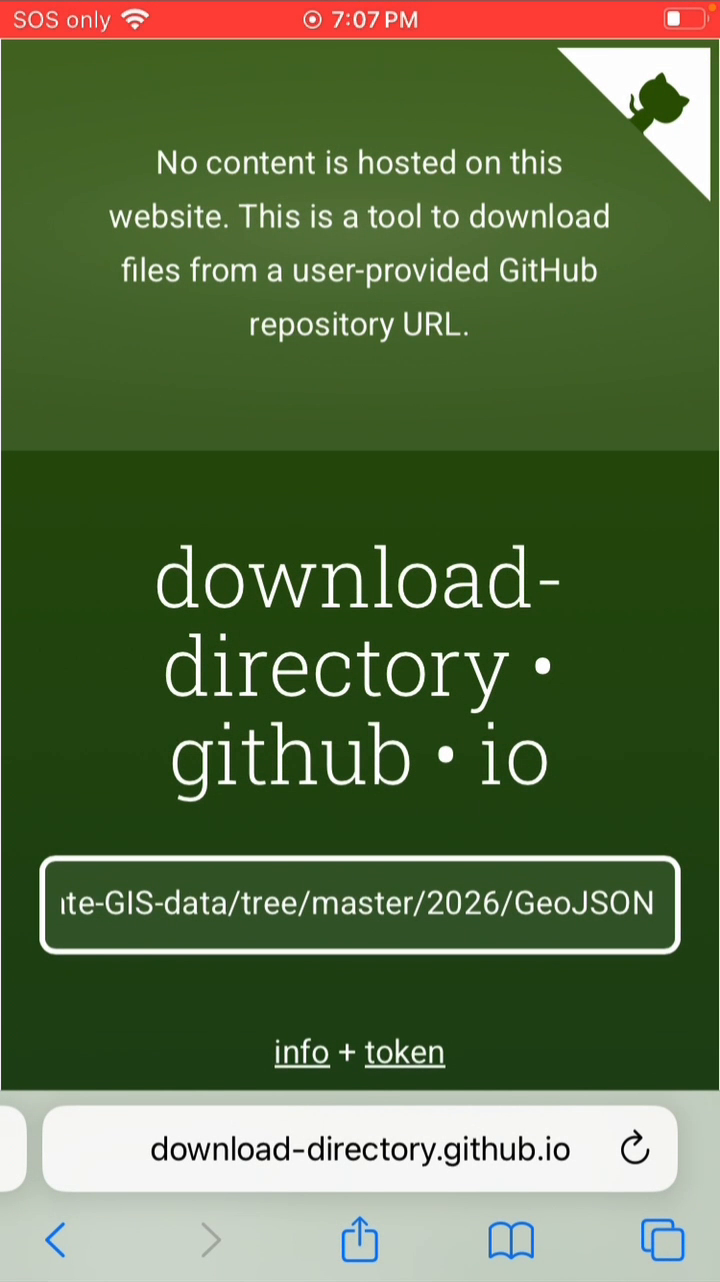
- Safari opens
download-directory.github.io, which packages the official 2026 GeoJSON directory from the Burning Man Project GIS repository. - Wait until the page says Downloaded 9 files! Done! Safari will download a ZIP archive.
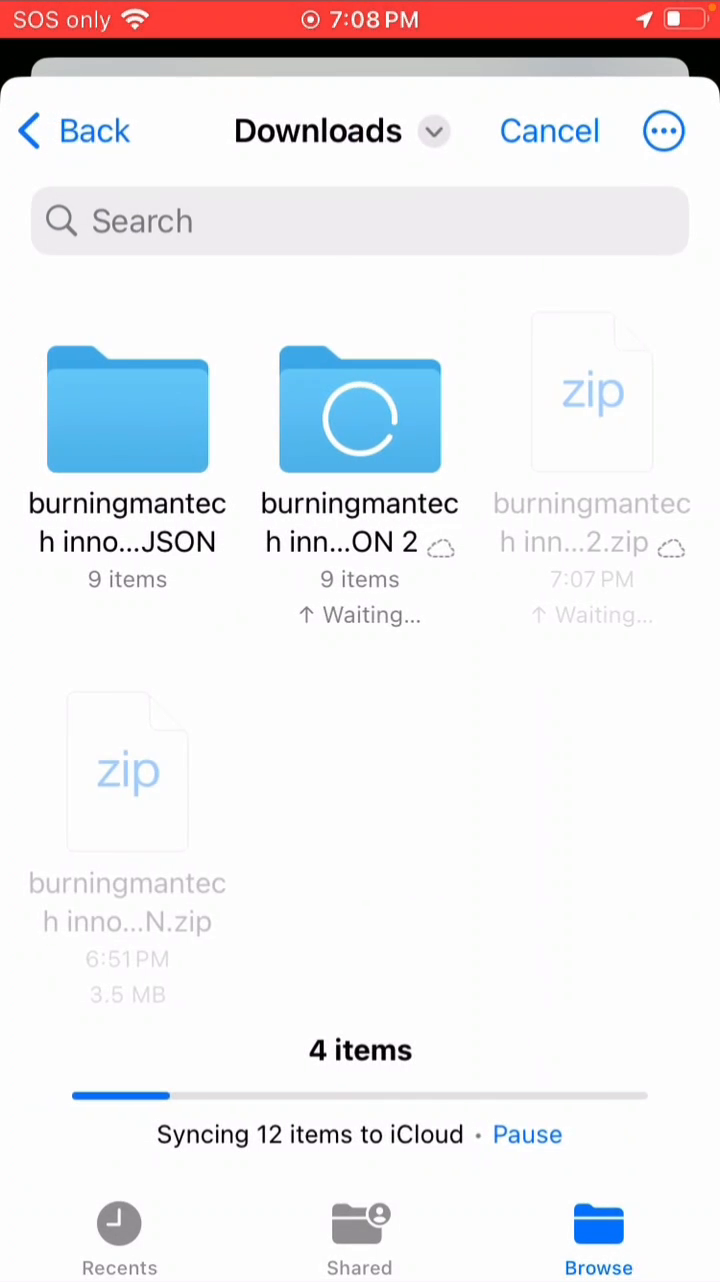
- Open the Files app and go to Downloads.
- If the ZIP has not already expanded, tap it once. iOS creates a blue folder containing nine GeoJSON files.
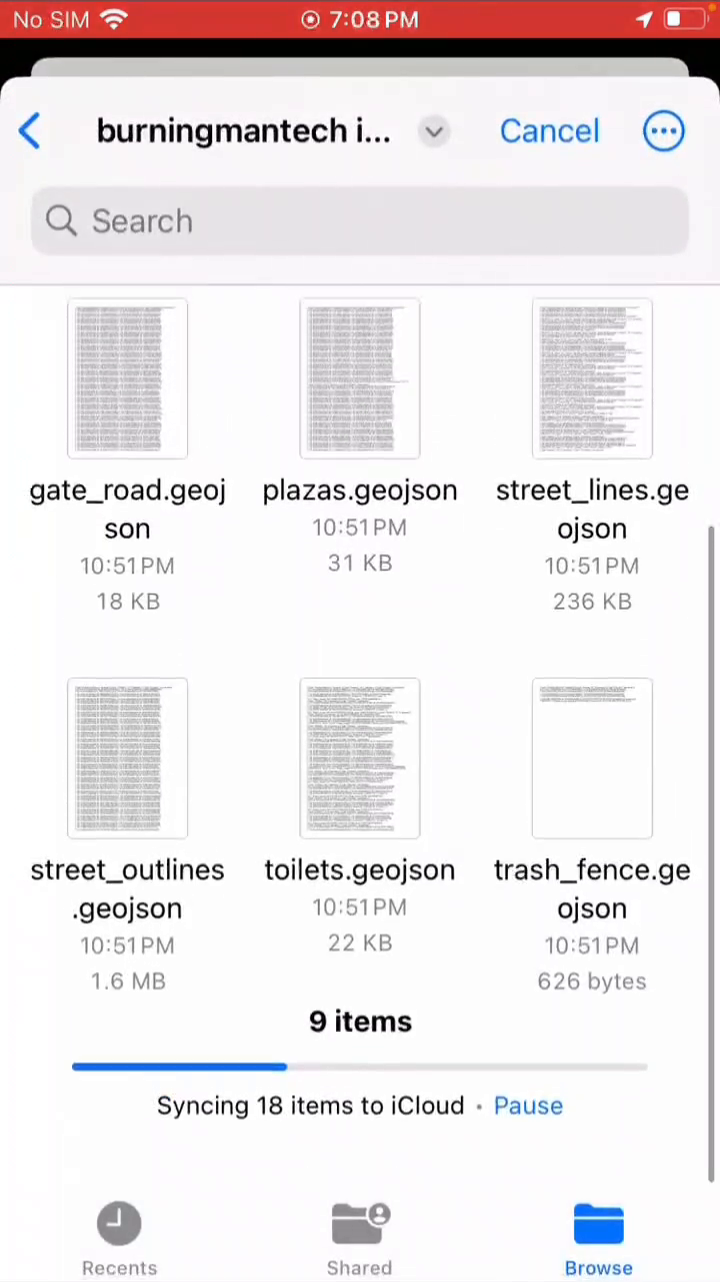
- Wait for any iCloud synchronization to finish before continuing.
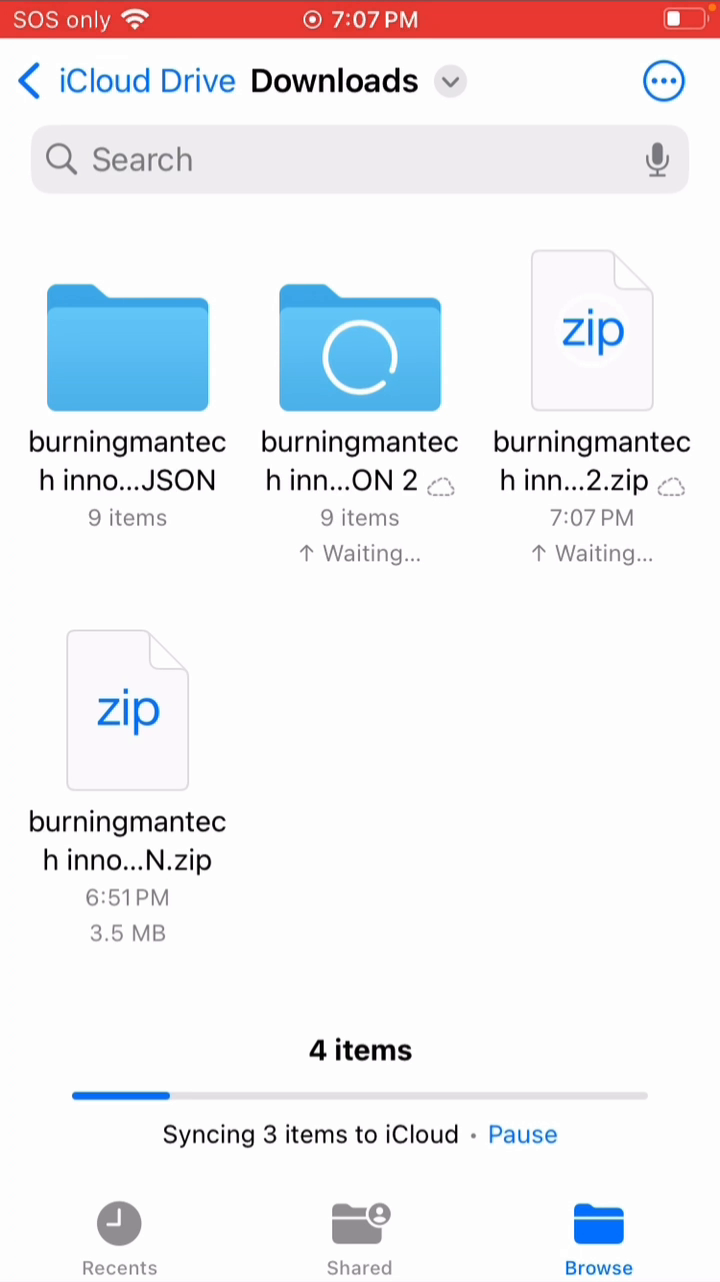
The extracted folder should contain:
city_blocks.geojsoncpns.geojsondmz.geojsongate_road.geojsonplazas.geojsonstreet_lines.geojsonstreet_outlines.geojsontoilets.geojsontrash_fence.geojson
¶ 2. Download the Black Rock City base map
- Open Meshtastic and select the Map tab.
- Tap the information (i) button on the map to open Map Options.
- Scroll to Offline Maps, then tap Offline Maps.
- Tap Download New Map.
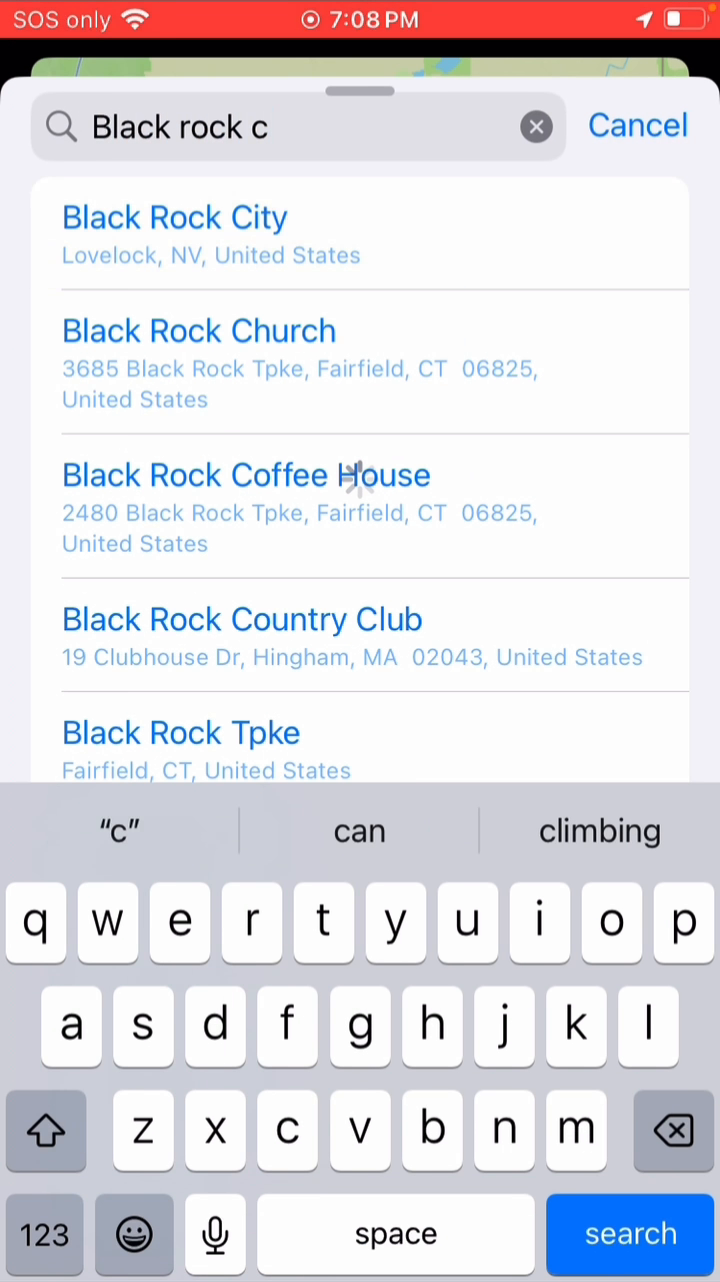
- Search for Black Rock City and select Black Rock City — Lovelock, NV, United States.
- On Choose Area, drag the map or the four corner handles until the box covers the area you want available offline.
- Choose Standard or High detail. The estimated download size appears below the selector.
- Tap Download.
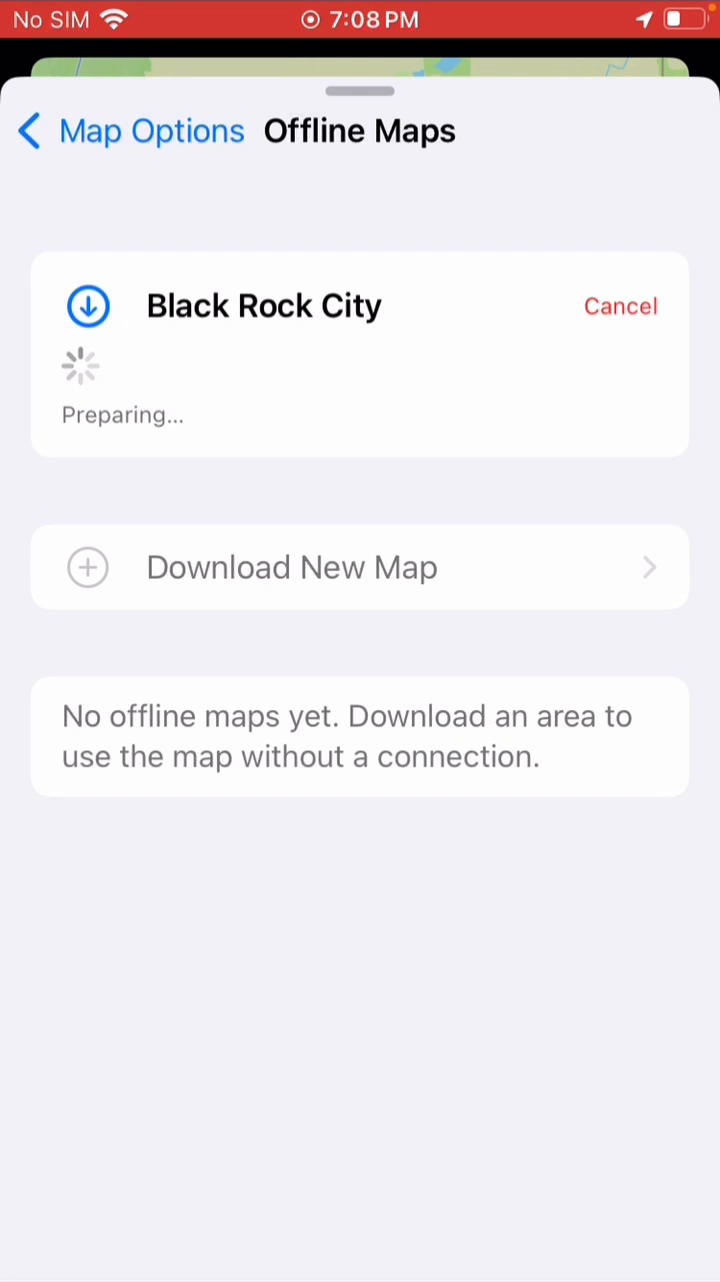
- Keep the app open until the download finishes. A completed entry named Black Rock City appears under Offline Maps.
Tip: A larger area or High detail uses more storage. The tutorial demonstrates both detail levels; choose the smallest area and detail level that meet your needs.
¶ 3. Import the 2026 GeoJSON overlays
- Return to Map Options.
- Scroll past Offline Maps to Map Overlays.
- Tap Upload Map Data.
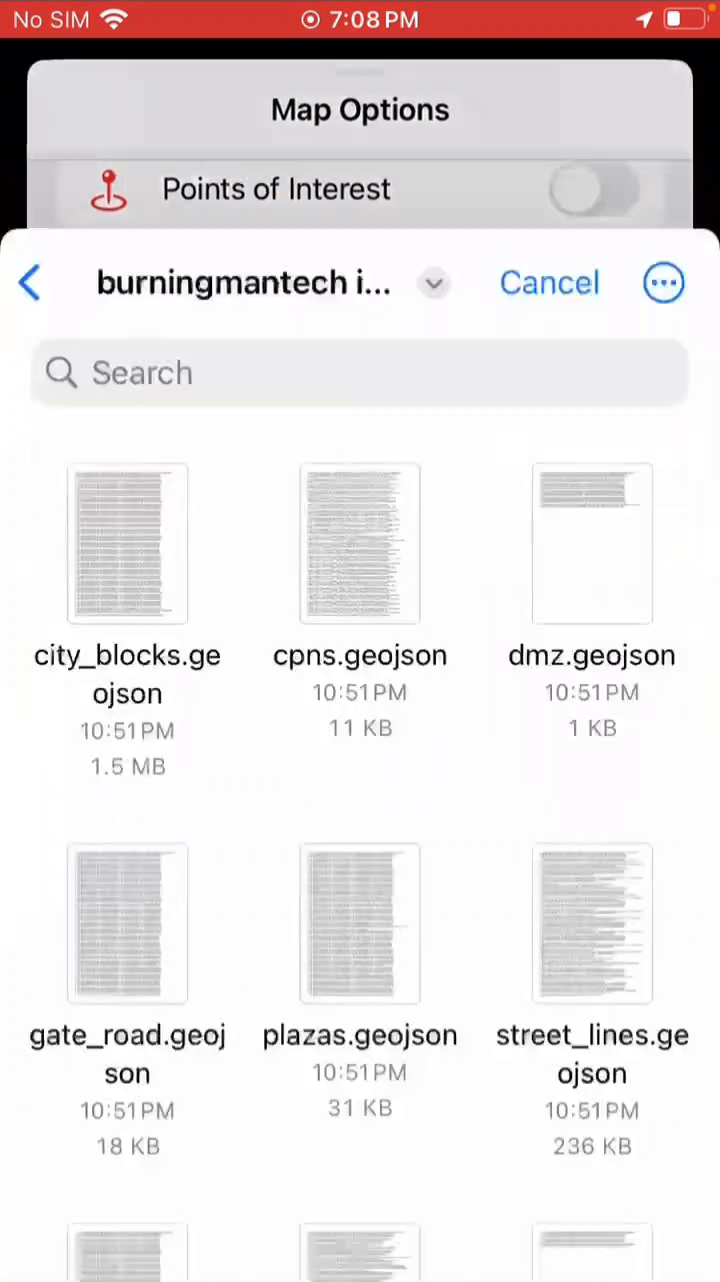
- In the Files picker, open the extracted GeoJSON folder in Downloads.
- Select the GeoJSON files you want to import. To reproduce the complete tutorial setup, import all nine files.
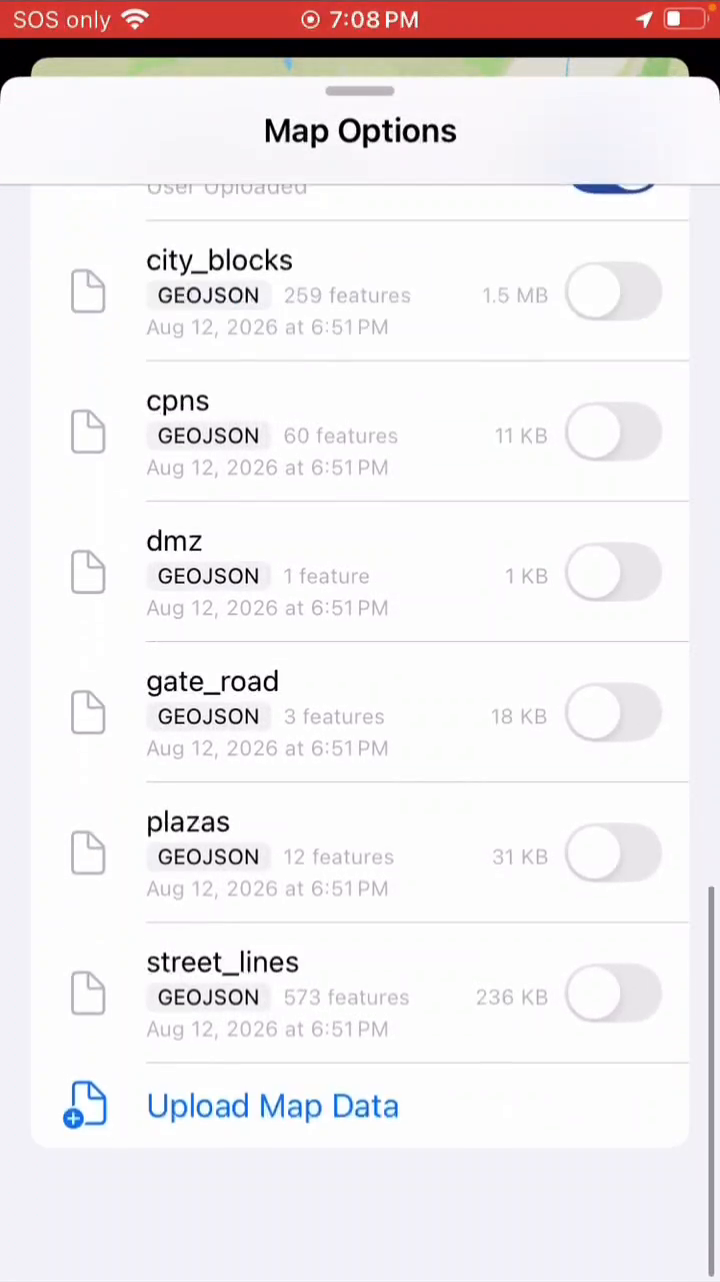
- After the import, the files appear as individual layers in Map Options.
¶ 4. Turn on the map layers
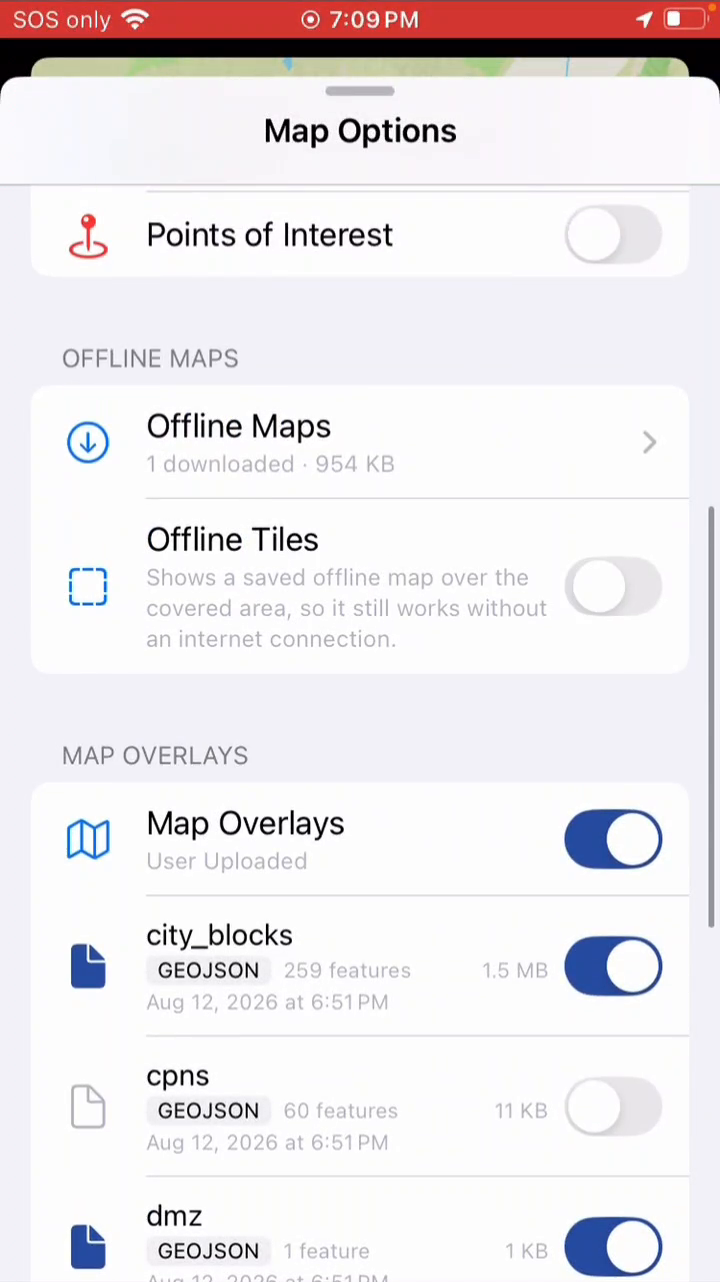
- Turn on the main Map Overlays switch.
- Turn on each individual layer you want to see. The tutorial enables:
city_blocksdmzgate_roadplazasstreet_outlinestoilets
- Leave layers off when you do not need them. For example, dense point or line layers can make the map harder to read.
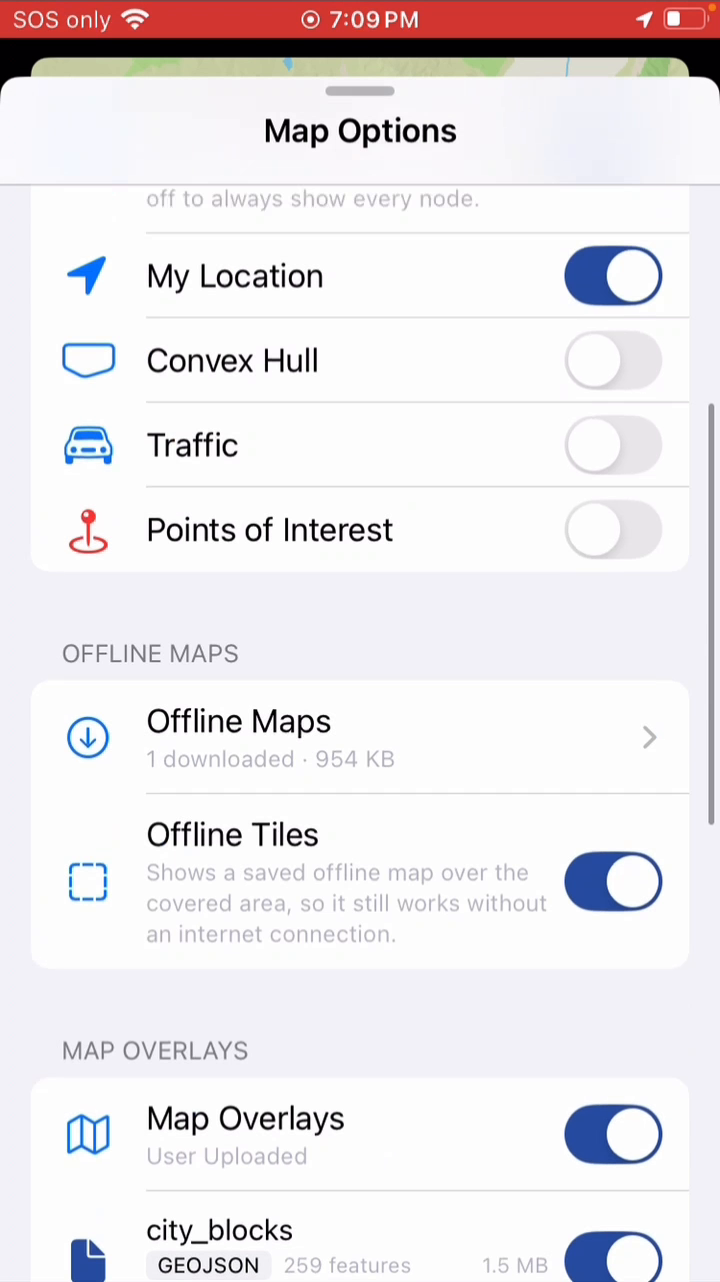
- Turn on Offline Tiles so the downloaded base map is displayed when the device has no internet connection.
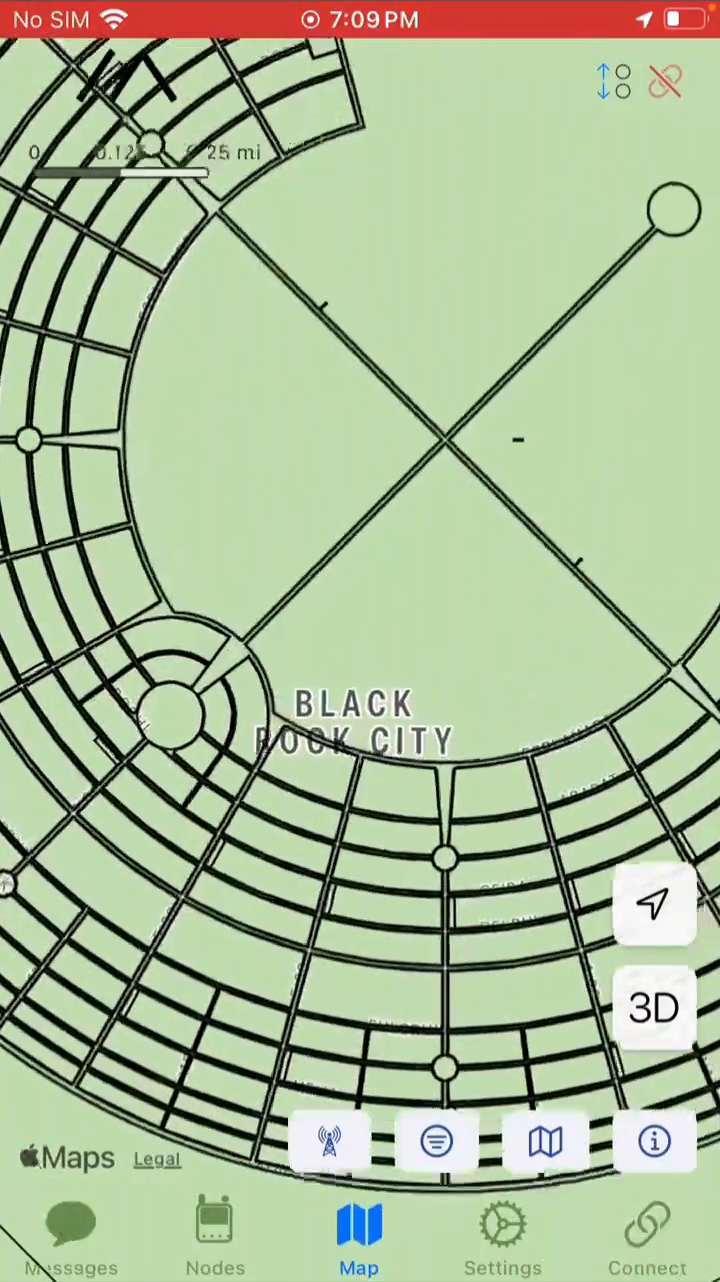
- Close Map Options and zoom in on Black Rock City. The selected event overlays should appear over the offline base map.
¶ Verify the setup before you leave service
- Open Black Rock City on the Meshtastic map and confirm the selected overlays are visible.
- Temporarily enable Airplane Mode, return to Meshtastic, and confirm the downloaded base map still renders.
- Re-enable your normal network settings afterward.
If the overlay lines appear but the surrounding base map disappears while offline, return to Map Options and make sure Offline Tiles is on.
¶ Updating the map data
The overlays in this guide are specifically for Burning Man 2026. If Burning Man publishes updated files, download the current GeoJSON directory again and re-import the layers before heading to Black Rock City.